
Amazon Photos: Photo & Video
Amazon Mobile LLCPhotography
4.7135.47K Reviews
- Version
- Varies With Device
- Installs
- 50.00M
- Age Rating
- Everyone
Screenshots
Our Review of Amazon Photos: Photo & Video
 Analysis by Appyee
When a photo backup seems to stall, it is tempting to blame the app straight away. I’d first check the practical basics: whether I’m signed in to the Amazon account I meant to use, whether the device has a reliable connection, and whether the app is open long enough to finish the work I started. Those checks sound ordinary, but they can prevent a lot of needless troubleshooting. Amazon Photos: Photo & Video is most useful when it fits into a routine rather than being treated as a one-time rescue button for a crowded camera roll.
Start with the account and the kind of backup you need
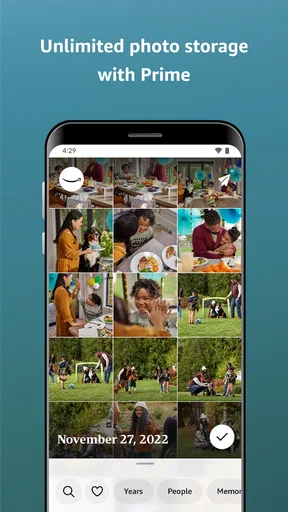
The account matters because your stored library is tied to it. If photos seem to be missing, I would confirm the signed-in account before uploading them again; switching accounts can make a complete library look empty without anything having been deleted. I’d also decide whether I’m trying to protect photos, videos, or both. Prime members get unlimited photo storage and five gigabytes for video, so a video-heavy library calls for more attention to what is being backed up than a camera roll made mostly of still images.
That distinction is easy to overlook when a phone mixes screenshots, family pictures, short clips, and longer recordings in one place. Before relying on the app as my only copy, I’d check that the items I care about are visible in the cloud library, especially after changing phones or accounts. I also wouldn’t assume that an item is safely backed up just because it appears in the phone’s gallery: the gallery shows what is on the device, while the point of a backup is having another copy available elsewhere.
Recover the workflow before repeating uploads
If a batch does not appear, I’d avoid tapping through repeated upload attempts without checking what is already present. Look for a small test group first: a recent photo and a short video are enough to see whether the problem affects everything or only one kind of file. If the test photo appears but the video does not, that points toward checking the video-storage allowance rather than treating the whole library as broken. If neither shows up, I’d revisit the account and connection before trying again.
A useful habit is to let an initial backup run in manageable stretches, then check the result before adding another large group. That makes it easier to spot a snag and avoids turning a simple connection interruption into a confusing collection of duplicates. If I’m preparing to free space on my phone, I’d wait until I can see the backed-up copies in Amazon Photos first. A cloud library is reassuring, but it is only a dependable safety net when I have verified that the files I want are actually there.
When the phone or connection is the weak link
Not every delay is an app problem. A weak or changing connection can interrupt uploads, and a phone that is busy with other tasks may not be the best place to start a large transfer. I’d try again when the connection is steady and the device can stay available, then check whether the app is signed in and showing the expected account. These are simple steps, but they help separate a temporary device issue from a problem with the photo library itself.
I’d also keep expectations realistic when judging speed. A small handful of recent pictures is not a fair comparison with a large backlog containing videos, and upload time can vary with the connection and the amount of material involved. Rather than repeatedly restarting everything, I’d check a few representative files and give the process time to settle. If the same items remain unavailable after those checks, I’d use Amazon’s support options instead of deleting originals or making risky changes to the phone.
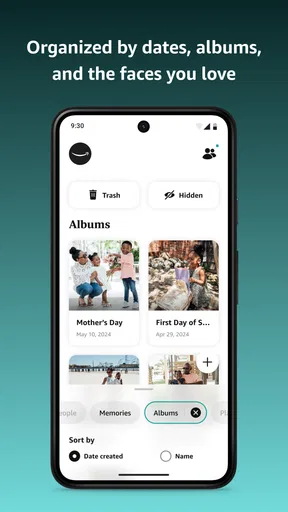
Have you ever found yourself drowning in a sea of photos and videos, desperately trying to organize them without losing your sanity? Enter Amazon Photos: Photo & Video, the app that promises to bring order to your digital chaos. Having played around with it for a bit, I can confidently say it’s like a soothing balm for your cluttered gallery woes.
The User-Friendly Vibe
When you first open Amazon Photos, you’re greeted with a clean and simple interface that’s refreshingly intuitive. No need for a degree in tech wizardry to navigate this app! The layout is straightforward, making it easy for anyone to jump right in and start organizing.
One of the first things I noticed was how smoothly the app syncs with your Amazon account. If you’re already knee-deep in the Amazon ecosystem, this integration is a breeze. Your photos and videos are automatically backed up, and you can access them from any device. It’s like having a personal cloud that follows you everywhere.
Features That Shine
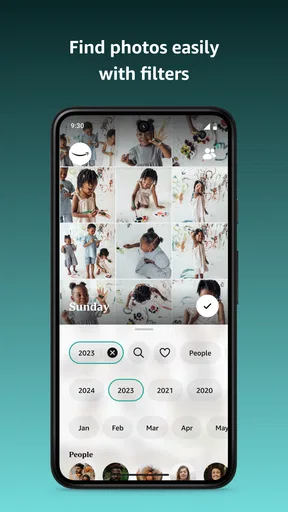
Now, let’s talk features. The facial recognition tech in Amazon Photos is pretty impressive. It’s like the app has its own little brain, organizing your photos by people, places, and things. Need to find that picture from your cousin’s wedding? Just type in a keyword, and voila! The app’s search functionality is a lifesaver.
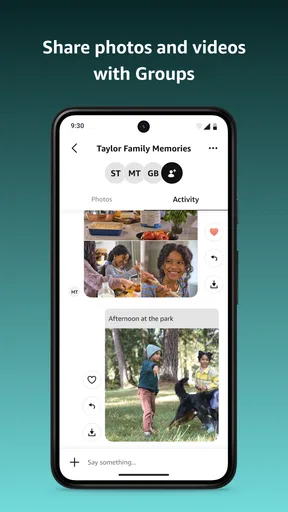
Another standout feature is the Family Vault. It’s perfect for sharing memories with your loved ones without having to spam everyone with endless group texts. You can invite up to five family members, giving them access to a shared space for all those cherished moments.
Performance and Accessibility
The performance of Amazon Photos is pretty solid. I didn’t experience any lagging or crashes, which is always a plus. The speed at which it uploads and organizes content is impressive, as well. Even with a massive collection of photos, the app handles it like a champ.
Accessibility is another strong suit. Whether you’re on Android or iOS, the app delivers a consistent experience. It’s great to see that Amazon has made the app available across platforms, ensuring that everyone can take advantage of its features.
Choosing it for the right job
The biggest decision is whether I want a broad photo organizer or simply a spare copy of my camera roll. Compared with keeping everything only in the phone’s gallery, a cloud library gives me a way to reach pictures from another device and reduces the risk of relying on one handset. Compared with a general-purpose cloud drive, Amazon Photos is more focused on browsing and finding memories as photos rather than treating every file as a document. That focus is useful for family albums and travel collections, but someone who mainly needs to store mixed work files may be better served by a regular file-storage app.
I’d recommend it most to people who already use Amazon and want a familiar place for a growing photo collection, particularly Prime members who take many still photos. It is less compelling if nearly all the material I want to protect is video, or if I do not want another account-based service in my routine. The app is free to download, though in-app purchases are available, so I’d review the options inside the app before assuming every storage need is covered at no cost. It is rated for Everyone and has a four-point-seven average from around one-point-one million ratings, which shows broad use, but that alone cannot tell me whether its approach suits my habits.
A routine that prevents surprises
Here’s how I’d use it after a busy weekend away. I’d open the app once I’m back on a dependable connection, confirm the right Amazon account, and let the new photos and clips begin to upload. Before clearing any space, I’d search for a couple of distinctive images from the trip and check that they appear in the cloud library. Then I’d share a selected set with family through the Family Vault rather than forwarding a stream of individual attachments. This small sequence makes the app useful both as a backup and as a way to make a trip album easier to revisit.
For a long-running collection, I’d make occasional searches part of the routine instead of waiting until I urgently need one picture. Searching for a person, place, or subject can be quicker than scrolling through years of dates, while checking a few recently added items helps confirm that the current workflow is working. I’d still keep especially important files in more than one place; no single app should be the only plan for irreplaceable photos. This is a practical safeguard, not a criticism unique to Amazon Photos.
What the experience does and does not solve
The search and shared library can reduce the effort of finding and passing along pictures, but they do not automatically make every collection tidy. I still need to choose what belongs in a shared space and be thoughtful about personal images before inviting relatives. Family Vault is handy when a group genuinely wants a common collection; for a one-off picture, a direct message may be simpler. The best choice depends on whether I want an ongoing shared album or just to send a few files once.
There is also a trade-off in leaning on Amazon’s ecosystem. If I already use its account and services, the familiar sign-in can make the app feel convenient. If I prefer to keep photos with another provider, moving between services or maintaining two libraries may add friction. I would choose one primary home for everyday browsing, then use Amazon Photos only if its storage arrangement and sharing workflow give me a clear benefit. Keeping several automatic systems active without a plan can make it harder to know which copy is current.
Who should keep looking
I would skip this as my main solution if I need a fully local photo manager, dislike account-based cloud storage, or want a video-first archive with ample room for long clips. It is also not the right fix for a phone that is already short on space if I plan to delete originals before confirming they are backed up. In those situations, I’d first compare storage terms and workflows with the service I already use, or keep a separate copy on a computer or other storage device. Convenience is valuable, but it should not replace a backup plan that matches the size and importance of my library.
Amazon Photos is a free photography app from Amazon Mobile LLC, first released on November second, two thousand twelve, and it supports devices running version eight-point-zero or later. It has more than fifty million installs and around one hundred thirty thousand written reviews. Those figures suggest that it is an established option, not a guarantee that every upload or search will behave perfectly on every device. I’d judge it by a few practical tests: whether my account is the one I want, whether the files I care about appear after backup, and whether the sharing features fit the people I actually exchange photos with.
My practical verdict
Amazon Photos is at its best when I want a straightforward cloud home for still photos, searchable memories, and a shared family collection, especially if I already belong to the Amazon ecosystem. Its main friction is not learning the interface; it is understanding which account and storage allowance apply, then checking that uploads have finished before relying on them. The distinction between photo and video needs deserves particular attention, and the app cannot make a weak connection or an unverified backup disappear.
If those trade-offs fit your situation, I think it is worth trying with a small, nonessential batch first. Check that the pictures show up where you expect, try a search, and see whether Family Vault suits your group before making it central to your routine. If you want a video-heavy archive, a local-only organizer, or a different cloud ecosystem, another option may be a better match. For my own photo-first workflow, though, it offers a practical balance of backup, finding, and sharing without demanding much technical know-how.
Privacy and Permissions
See what permissions an app requests and how it handles your data.
- Identity
- find accounts on the device, add or remove accounts
- Contacts
- find accounts on the device, read your contacts
- Location
- approximate location (network-based), precise location (GPS and network-based)
- Photos/Media/Files
- read the contents of your USB storage, modify or delete the contents of your USB storage
- Storage
- read the contents of your USB storage, modify or delete the contents of your USB storage
- Microphone
- record audio
- Wi-Fi connection information
- view Wi-Fi connections
- Other
- view network connections, create accounts and set passwords, pair with Bluetooth devices, access Bluetooth settings, allow Wi-Fi Multicast reception, full network access, run at startup, reorder running apps, use accounts on the device, control vibration, prevent device from sleeping
Verdict
Strengths of Amazon Photos: Photo & Video
- Unlimited photo storage with Prime.
- Automatic backup for peace of mind.
- Easy sharing with family and friends.
- Intuitive and user-friendly interface.
- High-quality photo and video resolution.
Limitations of Amazon Photos: Photo & Video
- Limited video storage without Prime.
- Editing tools are basic and limited.
- Requires Amazon account to use.
- No advanced search features yet.
- Occasional sync issues reported.
Other Releases by Amazon Mobile LLC
View All
MX Player
Video Players & Editors4.2

Amazon Shopping
Shopping4.4

Prime Video
Entertainment4.7

Prime Video
Entertainment3.1
Similar Picks in This Category
View All
Google Photos
Google LLC4.4

Gallery
Google LLC4.2

Picsart AI Photo Editor, Video
PicsArt, Inc.3.9

B612 AI Photo&Video Editor
SNOW Corporation4.1

BeautyPlus-Selfie Photo Editor
PIXOCIAL TECHNOLOGY (SINGAPORE) PTE. LTD.4.5

Remini - AI Photo Enhancer
Bending Spoons4.1
Frequently Asked Questions
What is Amazon Photos, and how does it differ from other cloud storage services?
Amazon Photos is a cloud storage service designed primarily for storing and organizing photos and videos. Unlike other cloud services, it offers unlimited photo storage for Amazon Prime members. This makes it an excellent choice for photographers or anyone with a large photo collection. It also provides 5GB of video storage and integrates seamlessly with other Amazon services.
Is Amazon Photos secure?
Yes, Amazon Photos is secure. It uses advanced encryption methods to protect your files both during transfer and while stored in the cloud. Additionally, it provides the option for two-factor authentication, adding an extra layer of security to your account. Regular updates from Amazon also ensure that any vulnerabilities are addressed swiftly.
Can I access Amazon Photos on multiple devices?
Absolutely. Amazon Photos is accessible on a wide range of devices, including smartphones, tablets, and computers. The app is available for both Android and iOS, and you can also access your photos through a web browser. This multi-device accessibility ensures that your photos and videos are always within reach, no matter where you are.
Does Amazon Photos offer any photo editing features?
Yes, Amazon Photos offers basic photo editing features. Users can crop, rotate, and apply filters to their photos directly within the app. While it may not replace advanced photo editing software, these tools are handy for quick edits and enhancements, allowing for immediate sharing or printing of your images.
How does Amazon Photos handle video storage, and are there any limitations?
Amazon Photos provides 5GB of video storage for all users. While this is sufficient for short clips and a moderate video collection, users who require more space can purchase additional storage. It’s important to note that only Prime members receive unlimited photo storage, so videos will count against the storage limit unless extra space is bought.
